Inspection Scripting
Subscription Tier Required
This feature requires the Premier subscription tier or higher.
Scripting Principles
In order to effectively make use of scripting in GS, you should be familiar with the following topics:
Scripts in GS run inside of a Web Worker, which allows access to a subset of available browser APIs. Scripts executed in GS will never be able to directly access the DOM.
Scripts in GS will execute once, from top to bottom, in the order which they are listed. Selected Library Scripts will be executed before any Inspection or Dashboard scripts.
GS makes heavy use of the async / await pattern. Prefer using async and await over .then(...) when writing code for GS to ensure the expected order of execution.
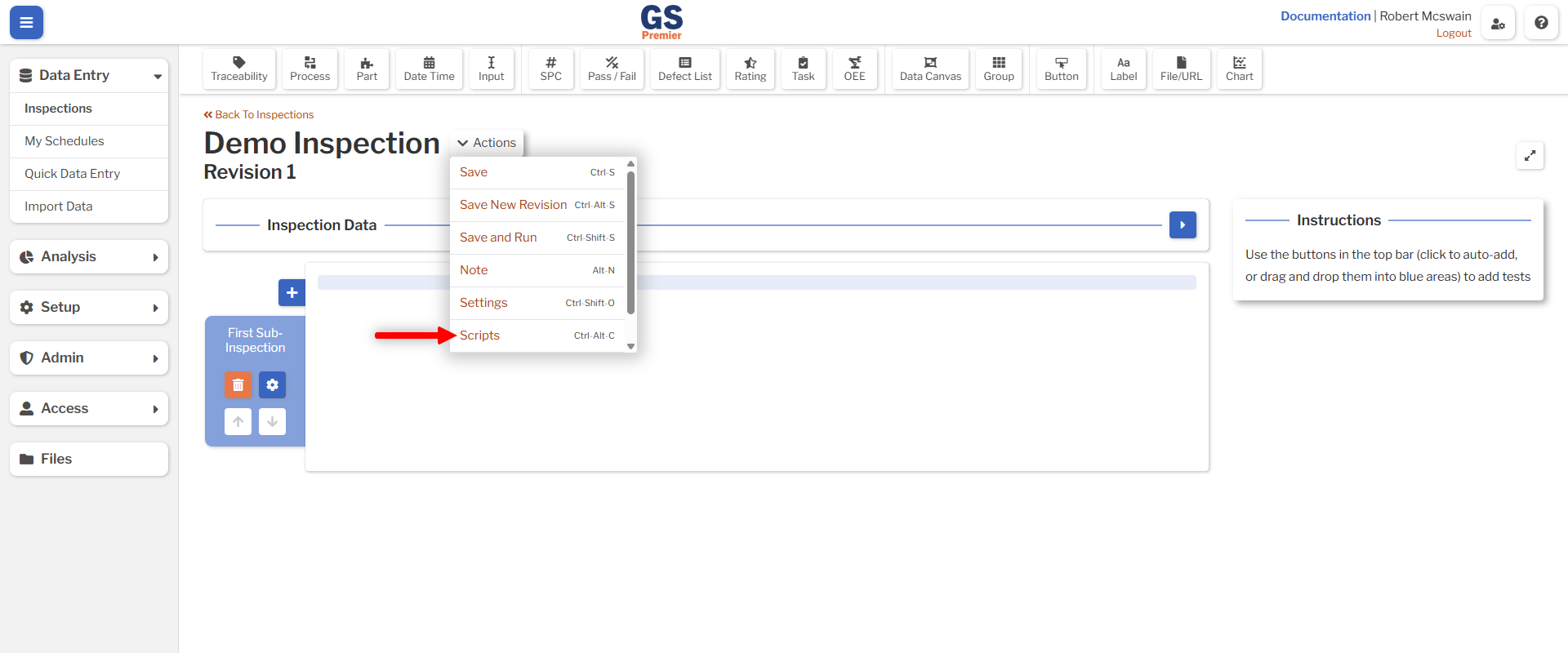
Scripts may be managed using the Scripts action in the Inspection Editor, or by pressing Ctrl+Alt+C.
Inspection API
All Inspection-specific functions and objects are under gsApi.inspection. This API contains a variety of events, functions, and access to other APIs.
For a full reference, see the Inspection API.
Sub-Inspection API
In order to access the properties and functions for a Sub-Inspection, a Sub-Inspection API must be constructed. This is done by passing the Script ID of a Sub-Inspection into the subInspection function:
The result of this may be stored for later use, in order to reduce typing and code complexity. For example, the following code:
const properties = await gsApi.inspection.subInspection('myScriptId').getProperties();
await gsApi.inspection.subInspection('myScriptId').updateProperties({
    showSubmitButton: properties.name === 'Final Checks'
});
Is equivalent to:
const mySubInspection = gsApi.inspection.subInspection('myScriptId');
const properties = await mySubInspection.getProperties();
await mySubInspection.updateProperties({
    showSubmitButton: properties.name === 'Final Checks'
});
Test APIs
In order to interact with Tests on a Sub-Inspection, a Test API must be constructed. This is done by passing the Script ID of the test into the appropriate SubInspectionApi or GlobalTagAreaApi:
gsApi.inspection.subInspection('myScriptId').passFail('myPassFail');
gsApi.inspection.globalTagArea().traceability('myTraceabilityTest');
As with Sub-Inspections, Test APIs may be stored for later use in order to reduce code complexity and improve readability.
const spcTest = gsApi.inspection.subInspection('mySubInspection').spc('mySPCTest');
spcTest.updateProperties({
    //...
});
React To Events
Most functionality in Inspection Scripts will happen in response to events. These events allow binding a function which will be executed whenever the event occurs. For example, to execute code whenever a Button Test is clicked, bind to the onClick event:
gsApi.inspection.subInspection('mySubInspection').button('myButton').onClick(async () => {
    console.log('This will be logged whenever the button is clicked');
});
To wait for the Inspection to be fully loaded, use the onReady event:
gsApi.inspection.onReady(async () => {
    // It is now safe to interact with sub-inspection and test properties
});
To perform an action after a Sub-Inspection has started, use the onAfterStart event:
gsApi.inspection.subInspection('mySubInspection').onAfterStart(async () => {
    // The sub-inspection is now fully loaded and running
});
Inspection Script Events
| Event | Applies To | Description |
|---|---|---|
onReady |
Inspections | Fires after the Inspection has completely loaded and has been shown to the user. At this point, it is safe to interact with the Inspection, Sub-Inspections, and Tests. |
onComplete |
Inspections | Fires after the first time all Sub-Inspections have been completed. This event occurs after data is submitted but before the final Sub-Inspection's onAfterEnd event. |
onProcessChangedonPartChangedonDateTimeChangedonTraceabilityChanged |
Inspections | Fires each time the global Process, Part, or Date/Time changes, or when a global Traceability value changes. |
onAfterStart |
Sub-Inspections | Fires after a Sub-Inspection has been loaded and shown to the user. |
onBeforeEnd |
Sub-Inspections | Fires after a Sub-Inspection has been requested to be submitted or cancelled. Any changes made to the Sub-Inspection and Tests inside this function will affect validation and data submission. Use the event's preventDefault() function to stop the Sub-Inspection from being submitted. |
onBeforeDataSubmit |
Sub-Inspections | Fires after all validation has occurred before a Sub-Inspection is submitted. Any changes made to the Sub-Inspection and Tests inside this function will have no effect on validation and data submission. Instead, modify the event's data.dataSet to change the data to be submitted. Note that no further frontend validation will be performed on the modified data set before it is sent to the GS backend. |
onAfterEnd |
Sub-Inspections | Fires after a Sub-Inspection has been successfully submitted or cancelled. This event occurs before the next Sub-Inspection (or Sub-Inspection list) has been loaded. |
onFocusOut |
Tests | Fires when a Test loses the browser's focus. This event fires before onFocusIn on the Test receiving the browser's focus. |
onFocusIn |
Tests | Fires when a Test receives the browser's focus. This event fires before onOptionSelected / onClick. |
onOptionSelected |
Tests | Fires when a Test with options has one of its options selected. This event applies to Part, Process, Traceability (if restricted), Input (if set up to use options), Pass/Fail, Rating, Task, and OEE Tests. |
onClick |
Tests | Fires when the button in a Button Test is clicked. |
onRTFChanged |
Tests | Fires when the real-time failures attached to Data Test change. This event applies to SPC, Pass/Fail, Defect List, Rating, and OEE Tests. |
Offline Considerations
Some Users may run Inspections without an active internet connection. When an Inspection is executed offline, Inspection Scripts will still run, but any script that relies on network connectivity might fail.
If an Inspection may be used offline, pay close attention to code that depends on external data sources. You will likely want to employ defensive code strategies in these areas, such as:
- Wrapping
fetchcalls in atry-catchblock. - Providing meaningful fallback behavior when data cannot be loaded.
- Avoiding script errors that would block Users from continuing their work offline. However, if critical steps in an Inspection might be missed while offline, consider preventing the User from continuing until they are back online.
Built-In Caching
GS automatically caches all GET requests made to GS servers for Users who are permitted to run Inspections offline. GS will automatically replay these cached responses when offline.
You do not need to implement your own caching for GS GET requests.
Next Steps
Now that you're familiar with basic principles of Inspection Scripting in GS, you are ready to walk through some specific scripting tasks: